The code below starts from
extractions.json, the values the OCR and LLM steps produced,
and leaves those two steps out. You can make that file with Tesseract and your LLM of
choice.
Setup
TYPESAFE_API_KEY. Download the two invoice photos, extractions.json and
json_cache.json from
typesafe-public-examples,
and put them beside the script, with the photos in an inputs/ folder.
Every API response is saved in json_cache.json, so running the cookbook reuses those
saved responses and you get the published numbers without calling the API. Delete that
file to send every request again.
Note - Images andThe numbers below came fromBoxquestions are dreamer-ready, which means they are not yet ready for production, and their request format and answers can change between releases. They need Jev 1.14, and every request needs theTypeSafe-Danger-Zone-Images: trueheader. The client below sets that header.
jev-1.14.0 on 2026-10-15.
Load the photos and what the extractor read
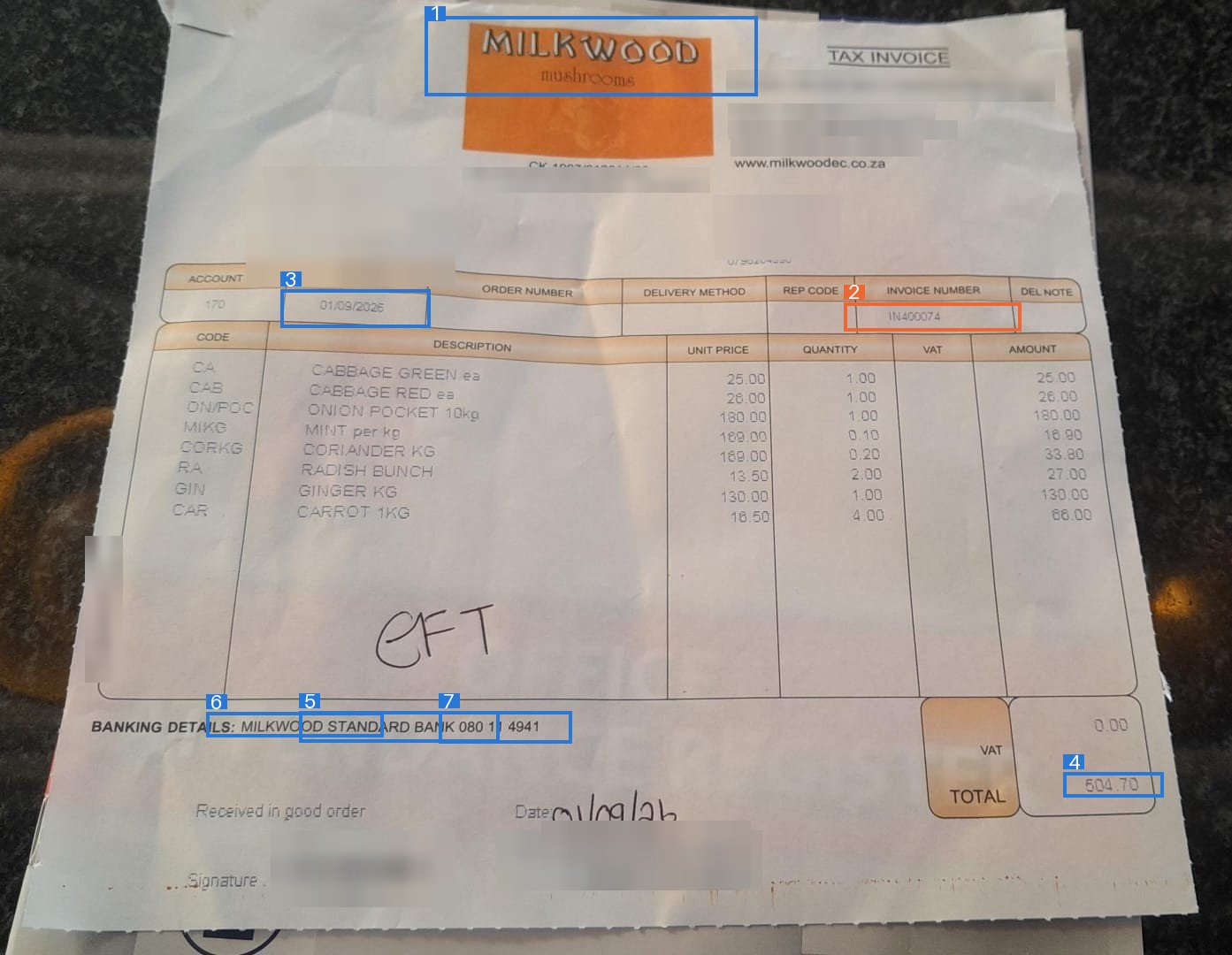
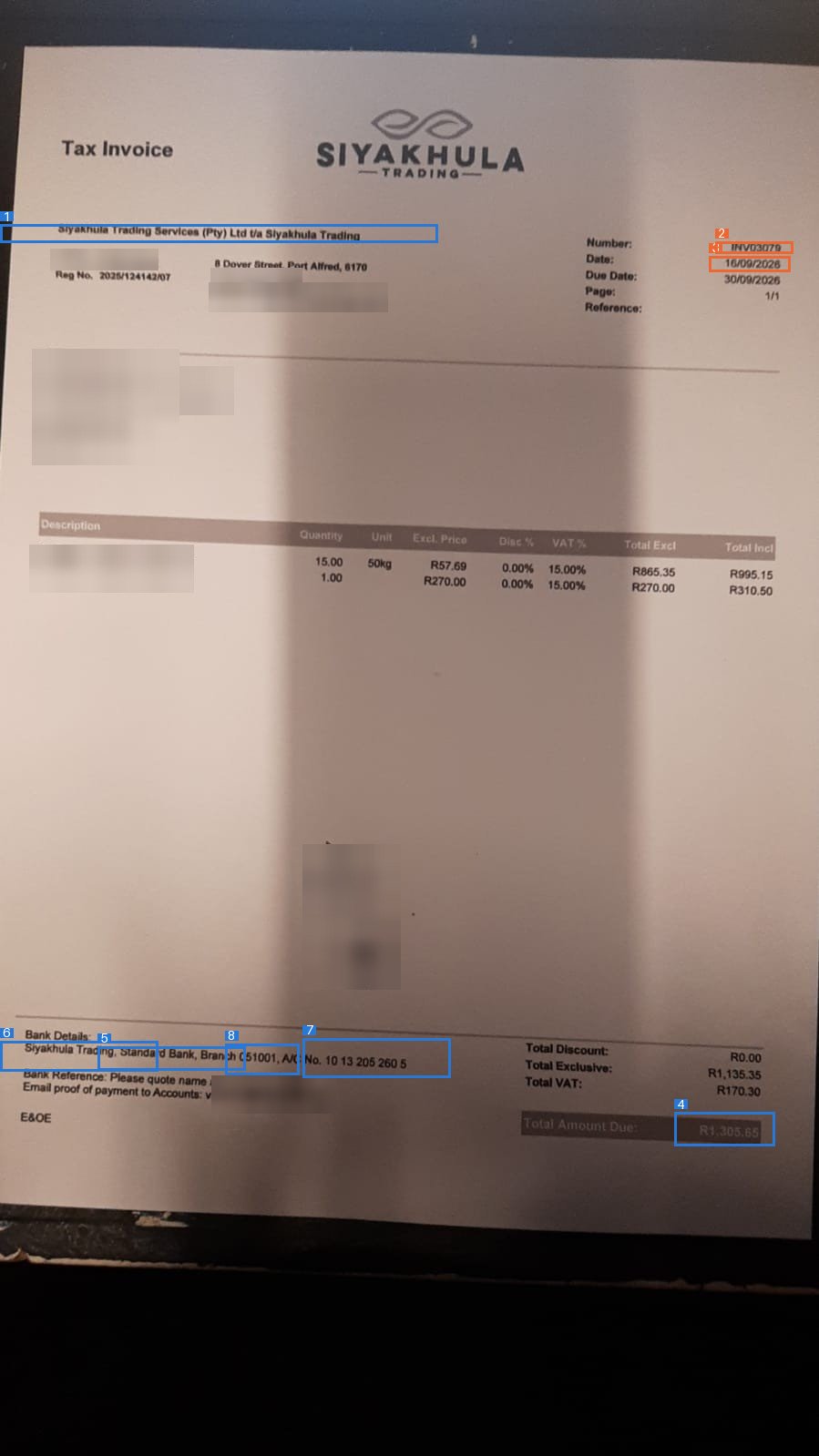
The two photos are invoices a restaurant received from its suppliers, taken with a phone. One is a creased carbon copy from Milkwood Mushrooms. The other is from Siyakhula Trading and has a shadow down the middle, making it a challenging OCR task. The extracted values are inextractions.json. We used Apple Vision’s text recognition
(OCR) to read the photos, and an LLM to read the output of that and return the structured
values. Any extractor works here, because the check only needs the photo and the values.
Find each field on the page
The first of the three requests sends the whole photo, with two questions for each field:- A
Boxquestion that finds the field. It includes the extracted value as a hint about which text to box. This box decides where to zoom in. - A
Noulquestion that asks whether the extracted value is that field on this page. Its P(yes) is the first of the two checks, the page check.
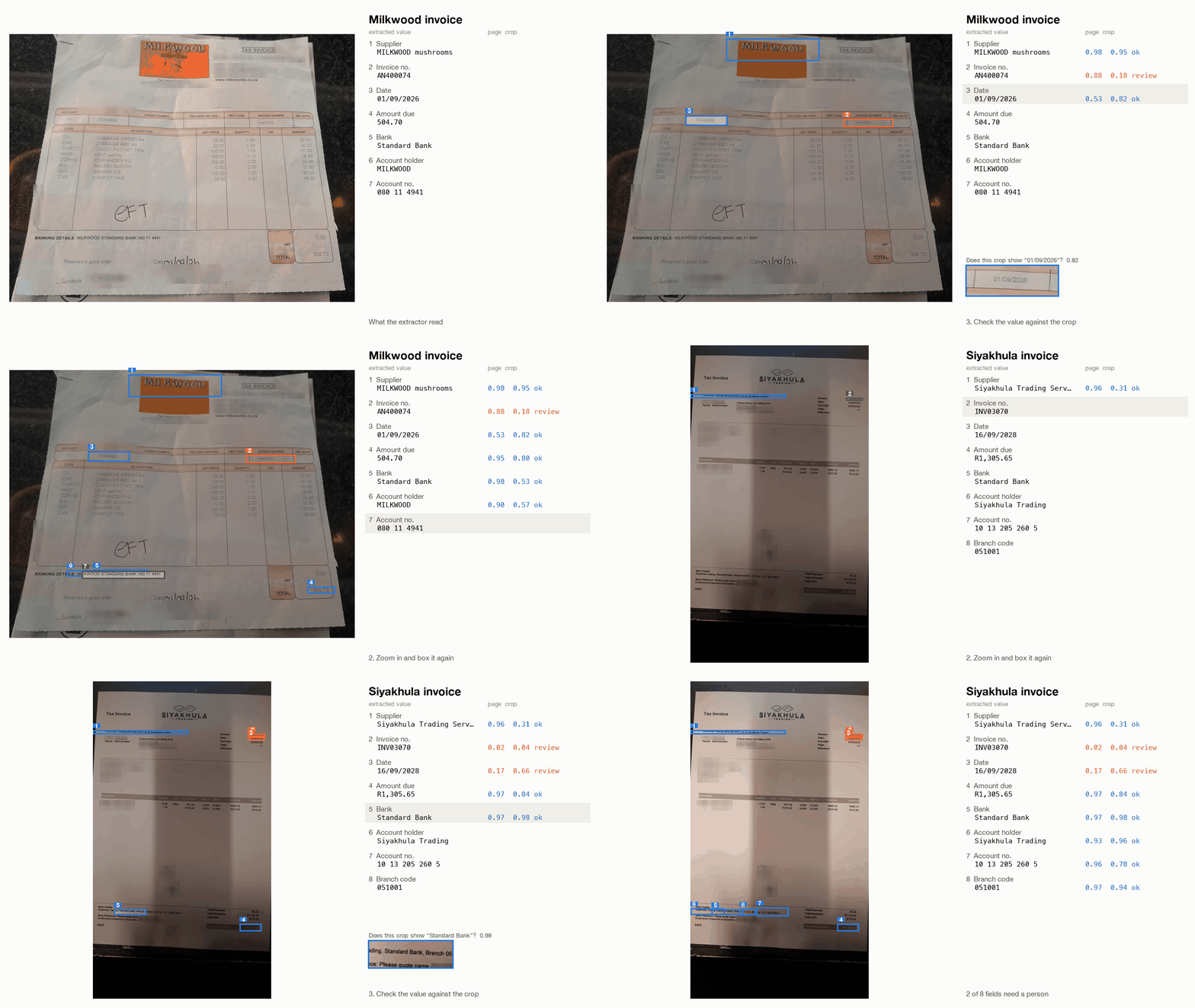
INV03070 (0.02) and 16/09/2028 (0.17), but passes the misread
AN400074 at 0.88. A photo of the whole page shows small print in little detail, so these
first boxes are rough.
Zoom in and box each field again
For each field, cut out a region around its first box and enlarge it. The region is at least 30% of the page wide and 15% high, so the field stays inside it even if the first box was off. Then ask the sameBox question about each region. Each region’s image goes
inside its question’s instructions, all the regions go in one request, and
client.attach_assets() sends the images with it.
The code then pads each new box on every side, so that cropping to it can’t cut off part of
the value.
Check each value against its crop
Crop the photo to each padded box and ask oneNoul question per field: does this crop
show the extracted value? Each crop goes inside its own question’s instructions. The
answer’s P(yes) is the crop check.
Flag the fields a person should check
A field goes to review when either check scores belowBAR (0.25).
AN400074 (0.18),
which the page check passed at 0.88. The page check catches 16/09/2028 (0.17), which the
crop check passed at 0.66. Both catch INV03070.
All the correct values pass both checks. The lowest scores among them are the Milkwood
account number at 0.35 on the page check and the Siyakhula supplier name at 0.31 on the
crop check.
On each photo, every box is numbered as in the # column above. Orange marks a field to
review and blue one that passed, so a reviewer can check each value where it is printed.